West Coast POS

How to Set Up a POS System for a Small Business

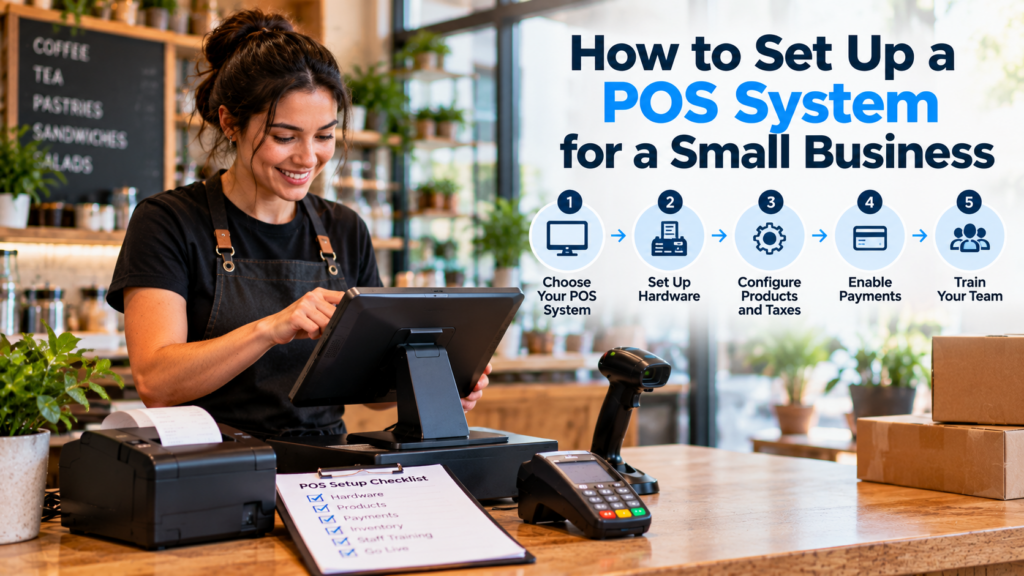
Small business owner setting up a POS system at a café counter with a touchscreen terminal, barcode scanner, receipt printer, and payment reader.

Opening a small business comes with plenty of decisions, from choosing a location and ordering inventory to hiring employees and getting ready for your first customers. One of the most important is setting up your point of sale (POS) system.

Your POS system is where transactions happen, but it also affects how you manage products, track sales, accept payments, train employees, and keep daily operations organized.

To set up a POS system for a small business, choose software and compatible hardware, create your merchant account, connect your equipment, configure products and taxes, set up payment processing, assign employee permissions, test transactions, and train your staff before opening.

The process can be straightforward for a business with one register. Restaurants, retailers, and businesses with multiple checkout stations may need additional equipment and configuration.

This guide walks through the POS system setup process so you know what to prepare, what to test, and when professional installation may be worth considering.

How to Set Up a POS System: 10 Steps

A typical small business POS setup follows these steps:

  1. Choose a POS system that fits your business.

  2. Gather the necessary POS hardware.

  3. Create your POS account and business profile.

  4. Connect the POS terminal, payment device, and accessories.

  5. Add your products, services, or restaurant menu.

  6. Configure taxes, discounts, and payment processing.

  7. Set up inventory, employees, and permissions.

  8. Connect any additional business tools.

  9. Test the entire checkout process.

  10. Train employees and prepare for opening day.

You do not need the most expensive equipment to start accepting payments. You need a system that supports how your business operates today, with room to grow as your needs change.

Step 1: Choose the Right POS System for Your Business

Before ordering equipment, identify what your POS system actually needs to handle.

A coffee shop, clothing boutique, barbershop, and full-service restaurant may all accept card payments, but their daily workflows look different.

A retail store may prioritize barcode scanning and inventory management. A restaurant may need menu modifiers, kitchen printers, table management, and tipping options. A service business may focus on appointments, invoices, and customer records.

Start by answering these questions:

  • What products or services will you sell?

  • How many checkout stations will you need?

  • Will customers pay at a counter, tableside, or online?

  • Do you need inventory tracking?

  • Will employees have different levels of access?

  • Do you need receipts, kitchen tickets, or customer-facing displays?

  • What reports will you review at the end of each day?

The answers help narrow down your software and hardware options.

Avoid choosing a system based only on the advertised monthly subscription. Consider hardware compatibility, processing costs, training, technical support, and the features your business needs.

Step 2: Gather Your POS Hardware

Once you have selected a POS platform, the next step is gathering compatible equipment.

A basic point of sale setup may include a terminal or tablet, a payment reader, a receipt printer, and a cash drawer.

A larger operation may need barcode scanners, kitchen display systems, customer-facing screens, or handheld devices.

POS hardware What it does
POS terminal or tablet Runs the checkout software
Payment terminal Accepts supported card and contactless payments
Receipt printer Prints transaction receipts
Cash drawer Stores and organizes cash
Barcode scanner Finds products by scanning barcodes
Customer-facing display Shows customers transaction information
Kitchen printer or display Sends restaurant orders to preparation areas
Network equipment Connects compatible devices and supports communication

Not every business needs every device.

For example, a small service provider may be able to use a tablet and payment reader. A grocery or convenience store may need a dedicated register, barcode scanner, cash drawer, and receipt printer.

Check compatibility before purchasing hardware. POS software providers have different requirements for supported scanners, printers, payment devices, and tablets.

Equipment that looks similar may not necessarily work together.

Step 3: Create Your POS Account and Business Profile

With your hardware selected, create an account with your POS provider and enter the information required to configure your business.

Depending on the system, setup may ask for:

  • Business name and address

  • Business type

  • Contact information

  • Operating hours

  • Business locations

  • Banking details for payouts

  • Business and identity verification information

  • Receipt settings

  • Default currency and time zone

If your POS system includes payment processing, you may need to complete a separate merchant application or verification process.

Do not assume that creating an account automatically means you are approved to accept card payments.

Verify that your payment processing account is active before opening day.

Businesses with multiple locations should also confirm that each register, product catalog, employee account, and reporting setting is assigned correctly.

Step 4: Connect Your POS Hardware

Now you can begin the physical POS system setup.

Start by positioning the main register where employees can use it comfortably without blocking customer movement.

Connect the power supply, confirm internet access, and follow the POS provider’s device setup instructions.

Next, connect the supported accessories.

Payment terminal: Pair or connect the device using the provider’s approved setup process.

Receipt printer: Connect it through the supported USB, Ethernet, WiFi, or Bluetooth method, depending on the model.

Cash drawer: If supported, connect the drawer to the appropriate printer or POS interface and test the opening mechanism.

Barcode scanner: Pair the scanner and confirm it reads the barcode formats used by your products.

Customer display: Connect the screen and check that it displays the correct order information.

Keep cables organized and leave enough space for employees to access devices without unplugging them.

For restaurants, confirm that printers or kitchen displays are connected to the correct preparation stations.

Check Your Internet and Network

Many modern POS systems depend on internet connectivity for payment authorization, syncing, reporting, or connected services.

Some support limited offline functionality, but availability and restrictions vary.

Before opening, review your WiFi signal, wired connections, router placement, and what your POS can do during an internet outage.

A reliable network is especially important if several terminals, handheld devices, and printers communicate throughout the location.

Step 5: Add Products, Services, or Menu Items

One of the most time-consuming parts of setting up a POS system is preparing the items employees will sell.

For a retail store, this may involve entering product names, prices, stock quantities, barcodes, and categories.

For a restaurant, it may include menu items, sizes, modifiers, add-ons, and kitchen routing.

A useful product record may include:

  • Product or service name

  • Category

  • Selling price

  • SKU or barcode

  • Tax status

  • Inventory quantity, where applicable

  • Variants such as sizes or colors

  • Optional description or image

Organize products into categories that employees can understand quickly.

For example, a coffee shop might have Coffee, Tea, Cold Drinks, Pastries, and Merchandise.

A clothing store may organize inventory by product type, brand, size, or department.

Some POS platforms allow products to be imported from a spreadsheet. If you have a large catalog, ask your provider about the correct import format before manually entering hundreds of items.

Review product prices and details carefully. Errors in the catalog can lead to incorrect charges, inventory problems, and confused employees.

Step 6: Configure Taxes, Discounts, and Payments

Before processing your first customer transaction, your checkout settings need to be accurate.

Set Up Sales Taxes

Configure applicable sales taxes and assign the correct rules to products or services.

Tax treatment depends on the location, product type, and business activities. Some items may be taxed differently from others.

Check with your accountant or tax professional when you are unsure how a particular product or service should be treated.

Do not assume the POS automatically determines every tax obligation correctly.

Configure Discounts and Tips

If your business offers discounts, coupons, promotions, or loyalty rewards, configure the supported features before launch.

Restaurants and service businesses may also need tipping settings.

Test whether discounts and tips display correctly on customer receipts and reports.

Activate Payment Processing

Confirm that the payment terminal and merchant account are ready to accept the payment methods you intend to offer.

Depending on the provider, these may include chip cards, contactless cards, digital wallets, or other supported payment methods.

Review your processing agreement, transaction rates, payout schedule, and potential additional fees.

It is also important to understand how refunds, voids, tips, and daily transaction reconciliation work.

Step 7: Set Up Inventory and Employee Permissions

Once checkout is configured, turn your attention to daily operations.

Inventory Management

For retail businesses, inventory tracking may be one of the most valuable POS features.

If your system supports it, enter starting quantities and configure inventory adjustments, receiving, and low-stock notifications.

Check that products are deducted correctly after a completed sale.

If you sell products online and in-store, review whether the two channels share inventory and how synchronization works.

Employee Accounts

Create separate employee accounts rather than allowing everyone to share the owner’s login.

Depending on the system, staff permissions may control:

  • Refunds and voids

  • Discounts

  • Price changes

  • Inventory adjustments

  • Cash drawer access

  • Sales reports

  • Employee management

  • Business settings

A cashier may only need access to everyday transactions, while a manager may require additional controls.

Separate accounts also make it easier to review activity and investigate mistakes.

Step 8: Connect Other Business Tools

A POS system may connect with more than the checkout counter.

Depending on your business, useful integrations could include:

Accounting software: Helps organize sales and financial records.

Online ordering: Connects supported online sales channels to the store.

Inventory tools: Supports purchasing, receiving, and stock management.

Customer loyalty programs: Tracks eligible purchases and rewards.

Employee management: Helps organize schedules, time tracking, or access permissions.

Restaurant systems: May include kitchen displays, online menus, and delivery integrations.

Only activate integrations you actually need.

Adding unnecessary applications before launch can make setup more complicated and give employees more systems to learn.

For each connected tool, verify that data transfers correctly and that you understand which system is responsible for updating information.

Step 9: Test the POS System Before Opening

This is the step new business owners should never skip.

Your POS may look ready, but you will not know whether everything works until you test a real checkout workflow.

Start with a product or service from your catalog.

Add it to the order, apply the appropriate tax, complete an approved test payment, and verify the receipt.

Next, check the payment in your reporting dashboard.

Repeat the process using the different supported checkout methods your business expects to offer.

POS System Testing Checklist

Before launch, verify the following:

  • The POS terminal powers on and connects properly.

  • Employees can log in using their own accounts.

  • Products and prices appear correctly.

  • Barcode scanners read the expected labels.

  • Taxes and discounts calculate correctly.

  • Payment terminals process approved test transactions.

  • Receipts print or send correctly.

  • Cash drawers open when appropriate.

  • Inventory updates after completed sales.

  • Refund and void permissions work as intended.

  • Restaurant orders reach the correct kitchen device.

  • Sales reports match completed transactions.

  • Staff know what to do when internet access is interrupted.

Use the provider’s recommended test or training mode where available. If using real payments to test, understand how to reverse or refund them and whether processing fees apply.

The goal is to discover problems before the first paying customer encounters them.

Step 10: Train Employees and Prepare for Opening Day

A POS system is only useful when employees understand how to operate it.

Give staff a chance to practice common situations before the business opens.

For cashiers, training should cover signing in, finding products, scanning items, accepting supported payments, printing receipts, and requesting manager assistance.

Restaurant staff may also need to practice order modifiers, splitting checks, routing orders to the kitchen, and closing out tables.

Managers should understand refunds, permissions, reporting, inventory adjustments, and end-of-day procedures.

A simple training exercise is to have one employee act as the customer while another processes a complete sale.

Practice normal transactions first, then less common situations such as an incorrect item, a declined payment, or a printer problem.

Make sure everyone knows who to contact when equipment or software stops working.

How Long Does It Take to Set Up a POS System?

POS setup time depends on the number of registers, the size of the product catalog, the business type, and the complexity of the equipment.

A simple tablet-based setup with a small catalog may be configured in a few hours once the account and payment processing are ready.

A store with hundreds of products, several checkout stations, or multiple integrations may need more preparation.

Restaurants may require additional time to build menus, configure modifiers, connect kitchen devices, and train employees.

Payment account approval, equipment delivery, and data migration can also affect the schedule.

For a new business, it is better to complete the setup ahead of opening day rather than scheduling installation for the morning customers arrive.

How Much Does It Cost to Set Up a POS System?

The total point of sale setup cost can include hardware, software subscriptions, payment processing, installation, training, and ongoing support.

A business that installs a basic tablet-based system independently may have little or no professional installation labor cost.

A more complicated setup can involve separate charges for equipment, software configuration, network work, and employee training.

The key is understanding which expenses are one-time purchases and which continue monthly.

For a detailed breakdown of installation fees, read our POS system installation cost guide.

Common POS Setup Mistakes to Avoid

A few overlooked details can create problems once a business starts serving customers.

Buying hardware before checking compatibility. Confirm that each printer, scanner, payment device, and tablet is supported by the POS platform.

Waiting until opening day to activate payments. Merchant approval and device activation should be completed ahead of time.

Entering an incomplete product catalog. Missing items, incorrect prices, and inconsistent categories slow employees down.

Giving every employee administrator access. Set permissions according to job responsibilities.

Ignoring network reliability. A strong POS setup needs dependable device connections and a plan for outages.

Skipping practice transactions. Test the complete process, including payments, receipts, taxes, reporting, and inventory updates.

Not planning support after launch. Know who to contact when the system needs troubleshooting.

Many of these issues are easier to prevent during setup than to correct in the middle of a busy shift.

Should You Set Up a POS System Yourself or Hire a Professional?

Not every business needs professional installation.

A small operation using a compatible tablet, payment reader, and simple product catalog may be comfortable handling setup independently.

Professional installation may be worth considering when the business needs several terminals, kitchen systems, barcode scanners, network configuration, complex menus, data migration, or hands-on employee training.

An experienced installer can help plan hardware placement, configure connected devices, test the workflow, and prepare staff.

Business owners should compare the cost of professional service with the time they would need to spend configuring and troubleshooting the system themselves.

POS Setup and Installation in Southern California

New businesses in Ontario, Rancho Cucamonga, Fontana, Riverside, San Bernardino, and surrounding communities may benefit from working with a local provider while preparing to open.

West Coast POS assists businesses evaluating point of sale systems, hardware, payment solutions, installation, staff training, and ongoing support options.

Whether you are opening a restaurant, launching a retail store, or replacing an outdated register, the setup should match your checkout process and daily operations.

To explore available services, visit our POS installation and training page.

Getting Ready to Open Your Business?

Setting up a POS system should be one of the tasks you complete before your first customer arrives.

A well-prepared system allows employees to find products, process payments, print receipts, manage inventory, and review sales without unnecessary complications.

If you are planning a new location and need help selecting compatible equipment or preparing your checkout setup, West Coast POS can help review the requirements.

Frequently Asked Questions

Choose compatible POS software and hardware, create your business account, connect equipment, add products or services, configure taxes and payment processing, set employee permissions, test transactions, and train staff before opening.

Yes. Many basic POS systems support self-installation. Businesses with multiple registers, restaurant kitchen devices, large inventories, or complicated integrations may prefer professional setup.

Common equipment includes a POS terminal or tablet, payment reader, receipt printer, and cash drawer. Retailers may also need barcode scanners, while restaurants may use kitchen printers, displays, or handheld devices.

Most modern POS systems use internet connectivity for payment processing, synchronization, reporting, or connected services. Some offer limited offline capabilities, but restrictions vary by provider.

A simple setup may take a few hours after accounts, equipment, and product information are ready. More complex installations may require additional time for configuration, integrations, testing, and training.

You can often begin configuring POS software before payment processing is approved, but you generally need an activated, compatible payment arrangement before accepting live card payments.

Possibly. Reusing equipment depends on the POS platform’s compatibility requirements and the hardware models involved. Confirm support before purchasing software or planning a migration.

West Coast POS assists businesses in Southern California with reviewing POS hardware, payment options, installation requirements, training, and support. Contact the team to discuss your new business setup.

Scroll to Top