West Coast POS

POS System Installation Checklist: Hardware, Software and Payments

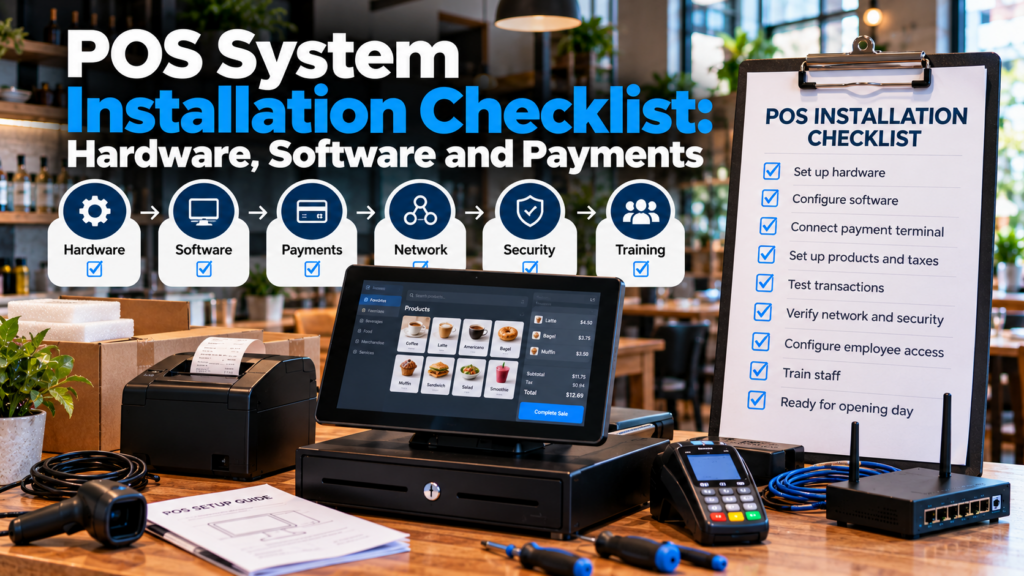
POS installation checklist showing a touchscreen terminal, receipt printer, card reader, barcode scanner, network router, and hardware setup steps.

A new point of sale (POS) system might look ready once the touchscreen turns on, but that doesn’t mean your business is ready to accept its first customer.

Your payment terminal still needs to process transactions. Receipt printers need to connect, products and prices must be correct, employees need the appropriate permissions, and every checkout station should be tested before opening.

A complete POS installation checklist covers six areas: hardware, network connections, software configuration, payment processing, security, and employee training. Each should be verified before the system goes live.

Whether you’re opening a restaurant, setting up a retail store, or replacing an older register, this checklist will help you identify missing equipment, avoid common setup mistakes, and prepare your business for launch.

Quick POS Installation Checklist

Before opening, confirm the following:

All POS hardware is compatible with your selected software.

Terminals, printers, scanners, and payment devices are connected.

Internet and network connections are reliable.

Business information, taxes, and receipt settings are configured.

Products, services, or menu items are entered correctly.

Employee accounts and permissions are established.

Payment processing is approved and activated.

Supported card and contactless payments have been tested.

Refunds, receipts, inventory, and reporting work correctly.

Employees and managers have completed training.

A support contact and troubleshooting plan are available.

A successful installation means the entire checkout process works, not just the individual devices.

1. POS Hardware Installation Checklist

Start with the physical equipment your business needs.

The exact hardware depends on how many checkout stations you have, whether customers pay at a counter or tableside, and whether your business needs barcode scanning or kitchen order management.

Essential POS Hardware

EquipmentInstallation check
POS terminal or tabletPowers on and runs the correct software
Payment terminalConnects and accepts supported payment types
Receipt printerPrints complete, readable receipts
Cash drawerOpens through the supported POS workflow
Barcode scannerReads the barcodes used by your products
Customer-facing displayShows the correct transaction details
Label printerPrints usable labels, if required
Kitchen printer or displayReceives orders at the correct station
Router or network equipmentProvides reliable device connectivity

Not every business needs all these devices.

A small service business may only need a tablet and payment reader. A grocery store may need several scanners, printers, and cash drawers. Restaurants often require additional devices to connect the dining room with the kitchen.

Before Connecting Equipment

Review the workspace itself.

There are enough accessible power outlets.

Counter space allows employees to use every device comfortably.

Cables are organized and protected from damage.

Devices are positioned away from spills and excessive heat.

The equipment is supported by the POS software.

Each device has the required cables, adapters, and accessories.

One of the easiest ways to delay a POS installation is to discover that an important cable, adapter, or compatible printer is missing.

Confirm equipment requirements before installation day rather than assuming every device will connect automatically.

2. Network and Internet Setup Checklist

A modern POS system often depends on a network connection for payment authorization, synchronization, reporting, and communication between connected devices.

Some platforms support limited offline functions, but the features available during an outage vary.

Your network should be tested before employees begin using the system.

Network Readiness Checklist

The internet connection is active and reliable.

Every terminal has a stable network connection.

WiFi coverage reaches all intended checkout locations.

Ethernet connections are available where required.

Printers and other connected devices are visible to the POS.

Network equipment is positioned securely.

Default router passwords have been changed.

Software and networking devices have current security updates.

The POS system’s offline limitations are understood.

For restaurants, check connectivity from the kitchen and any outdoor or tableside service areas.

For retail stores, make sure scanners, registers, and back-office equipment can operate in their intended locations.

A system that works perfectly beside the router may behave differently across a large store.

What Happens if the Internet Goes Down?

Before launch, ask your POS provider which functions remain available during an outage.

Some systems allow certain transactions or order entry to continue with restrictions. Others require an active connection for important features.

Do not assume card payments will continue processing normally without internet access.

Employees should know the approved procedure for outages and who to contact for assistance.

3. POS Software Configuration Checklist

Once the hardware and network are ready, review the software settings.

This stage determines what employees see when they log in, which products appear at checkout, how taxes are applied, and what information managers can access.

Business Settings

Business name and location are correct.

Contact information is accurate.

Time zone and operating hours are configured.

Receipt details are correct.

Applicable sales tax settings have been reviewed.

Discounts and promotional rules are configured.

Tips and service charges are set up where applicable.

Tax requirements differ by business and location. Confirm your settings with a qualified tax professional if you are unsure which rules apply.

Product and Menu Setup

Every item employees need to sell should be available before launch.

For a retail business, check product names, categories, SKUs, barcodes, prices, inventory quantities, and variants.

Restaurants should also review modifiers, add-ons, menu availability, and kitchen routing.

Use this checklist:

Products and services are entered.

Prices and categories are accurate.

Barcodes and SKUs match the correct products.

Tax settings are assigned properly.

Inventory quantities are entered where applicable.

Discounts apply to the intended products.

Restaurant modifiers and kitchen routing work correctly.

Items can be found quickly using search or category navigation.

If your catalog contains hundreds of items, ask whether your POS provider supports spreadsheet imports.

Preparing organized product data before installation can reduce manual entry and configuration errors.

4. Payment Terminal Installation Checklist

Payment setup deserves particular attention because an otherwise functional POS system may still be unable to accept live card transactions.

Creating a POS account does not always mean your payment processing application has been approved.

Before launch, confirm your merchant account status and the compatibility of your payment hardware.

Payment Processing Checklist

The payment processing application has been approved.

The correct business bank account is connected for payouts.

Payment terminals are activated and paired with the POS.

Supported payment types are enabled.

Card transactions complete successfully.

Contactless payments work where supported.

Approved refunds and voids operate correctly.

Tips are calculated properly, if applicable.

Transaction totals match POS reports.

Employees understand declined payment procedures.

Payment processing fees and payout schedules have been reviewed.

Not every payment processor supports every industry, hardware device, or transaction method. Verify what is available for your business before buying equipment.

Run a Payment Test Before Opening

Complete a test transaction using the payment method and testing procedure approved by your provider.

Verify that:

  1. The correct sale amount appears.

  2. The payment terminal receives the transaction.

  3. The transaction completes with the expected result.

  4. The POS records the payment correctly.

  5. The receipt displays accurate information.

  6. The transaction appears in the appropriate report.

If real card transactions are used for testing, ask the provider about refunds, reversals, and possible transaction fees.

Payment Security Requirements

Payment security is part of the installation process, not something to address after opening.

The PCI Security Standards Council recommends measures such as securing network access, changing default passwords, inspecting payment devices, and training employees to protect payment information.

Before going live:

Payment devices come from trusted suppliers.

Default passwords have been changed.

Administrative access is restricted.

Devices are inspected for signs of tampering.

Staff know how to report suspicious devices or activity.

Payment information is handled according to applicable requirements.

A professional installer can assist with configuring supported equipment, but businesses should also confirm their own security and compliance responsibilities with their payment provider.

5. Inventory, Reporting and Employee Permissions Checklist

A POS installation should prepare more than the customer-facing register.

Owners and managers also need confidence that the system records sales accurately and gives employees the appropriate access.

Inventory

Starting inventory quantities are entered.

Completed sales update stock as expected.

Product receiving workflows have been tested.

Inventory adjustments are restricted where appropriate.

Low-stock notifications are configured if available.

If you sell both online and in person, confirm how inventory updates between the two channels.

Employee Accounts

Create individual employee accounts instead of sharing one administrator login.

Review access to:

  • Refunds and voids

  • Discounts and price changes

  • Cash drawer functions

  • Inventory adjustments

  • Product editing

  • Sales reports

  • Employee management

  • POS settings

  • Each employee has a separate login.

  • Cashiers can perform their required tasks.

  • Managers have the appropriate approval permissions.

  • Administrative access is limited.

  • Employee activity can be reviewed where supported.

Reporting

Run test transactions and confirm the information appears correctly in reports.

Check daily sales totals, payment types, discounts, refunds, inventory changes, and employee activity.

For cash-handling businesses, review the expected opening and closing drawer procedures.

6. Restaurant and Retail POS Installation Requirements

The general installation checklist applies to most businesses, but certain industries have additional needs.

Restaurant POS Setup Checklist

A restaurant may need to verify:

Dining areas and tables are configured.

Menu items and modifiers are correct.

Orders route to the proper kitchen printers or displays.

Kitchen devices receive orders consistently.

Handheld ordering devices connect correctly.

Tip settings are accurate.

Splitting and combining checks work where supported.

Online ordering integrates properly if used.

Staff understand order corrections and manager approvals.

For restaurants, test the complete path from order entry to kitchen preparation and final payment.

A working register does not help much if food orders are being sent to the wrong preparation station.

Retail POS Setup Checklist

Retailers may need to verify:

Barcodes scan correctly.

Product variants are organized.

Inventory quantities are accurate.

Returns and exchanges follow store policy.

Discounts and promotions calculate correctly.

Customer receipts display the required details.

Stock updates after purchases and returns.

Managers can review product and category reports.

Retail owners should test several different product types rather than relying on one successful transaction.

7. POS Testing Checklist Before Launch

 Correct kitchen routing
End-of-day reportTotals align with recorded activity

Don’t stop after one successful payment.

Check how the system behaves when an item is entered incorrectly, a payment is declined, a printer loses its connection, or an employee needs manager assistance.

These are the situations that can slow down service if nobody has practiced them.

8. Staff Training and Opening Day Checklist

Even a properly configured POS system can create problems if employees do not know how to use it.

Training should cover the tasks employees perform most often.

Employee Training

Log in and out of the POS.

Find products and enter orders.

Scan items correctly.

Accept supported payments.

Print or send receipts.

Correct mistakes using approved procedures.

Request manager assistance.

Follow cash-handling procedures.

Respond to common hardware issues.

Manager Training

Review sales reports.

Manage employee permissions.

Approve authorized refunds and voids.

Review inventory adjustments.

Troubleshoot basic device issues.

Complete daily closeout procedures.

Contact technical support when needed.

Make sure at least one responsible team member understands the complete setup, not just how to complete a sale.

For a new business, finish training before opening rather than expecting employees to learn everything while customers are waiting.

9. Common POS Installation Mistakes

Many installation problems start with small assumptions.

Buying hardware before checking compatibility. A printer or payment terminal may not work with every POS platform.

Underestimating network requirements. A weak connection can interrupt communication between registers, printers, and other devices.

Using incomplete product information. Missing prices, incorrect categories, and barcode errors can slow down checkout.

Skipping payment activation. A merchant account may still require verification or approval before live transactions are permitted.

Giving employees too much access. Appropriate permissions can help prevent mistakes and unauthorized changes.

Failing to test kitchen routing. Restaurant orders need to reach the right preparation area.

Leaving training until opening day. Employees should practice normal and unusual transactions before serving customers.

A good installation plan addresses these issues before they affect daily business.

You can also check out our How to set up a POS system guide.

10. When Should You Hire a Professional POS Installer?

Some small businesses can install a basic tablet-based POS system themselves.

Professional installation may be the better choice when several devices or workflows need to work together.

Consider professional assistance if your business needs multiple registers, network configuration, restaurant kitchen systems, inventory migration, several payment terminals, or on-site employee training.

A professional installation project may include:

  • Reviewing the business’s checkout layout

  • Confirming hardware compatibility

  • Connecting POS terminals and accessories

  • Configuring supported software features

  • Assisting with approved payment device setup

  • Testing printers and connected devices

  • Reviewing transaction workflows

  • Providing employee and manager training

Before selecting an installer, ask what services are included and whether additional charges apply for network work, data entry, extra visits, or training.

You can also review our POS installation cost guide to understand the expenses that may be involved.

Professional POS Installation and Training in Southern California

Businesses preparing to open or replace their checkout equipment may benefit from working with a local point of sale provider.

West Coast POS works with businesses in Ontario, Rancho Cucamonga, Fontana, Riverside, San Bernardino, and surrounding Southern California communities to review POS systems, compatible hardware, payment workflows, installation requirements, and staff training.

Whether you’re setting up one register or planning a larger restaurant or retail installation, understanding the full workflow before launch helps prevent avoidable problems.

Learn more about our POS installation and training services.

Ready to Install Your POS System?

Use this checklist to make sure your hardware, software, payments, network, employees, and reporting are prepared before opening day.

If you’re unsure which devices are compatible, how to connect multiple registers, or how to prepare staff for launch, professional installation can help simplify the process.

Frequently Asked Questions

A POS installation checklist should cover hardware compatibility, device connections, network setup, software configuration, products, taxes, payment processing, employee permissions, security, transaction testing, reporting, and staff training.

Common POS hardware includes a touchscreen terminal or tablet, payment reader, receipt printer, cash drawer, and network equipment. Depending on the business, barcode scanners, kitchen displays, customer-facing screens, and other accessories may be needed.

Check the POS provider’s supported hardware list, device specifications, operating system requirements, and connection methods before purchasing equipment. Confirm payment terminal compatibility separately.

Follow your provider’s installation instructions. Some platforms require account activation and software configuration before connecting accessories, while others use a different setup sequence.

Yes, if you plan to accept live electronic payments. Confirm your merchant account is approved, payment devices are activated, and supported transaction types have been tested.

Test a complete sale, approved payment, receipt, cash transaction, discount, refund, employee login, inventory update, and reporting workflow. Restaurants should also test order routing to kitchen devices.

Many basic POS systems support self-installation. Businesses with multiple terminals, advanced network requirements, kitchen systems, or complicated integrations may benefit from professional installation.

West Coast POS helps businesses in Southern California review compatible POS equipment, installation requirements, payment workflows, testing, and training options. Contact the team to discuss your project.

Scroll to Top